Reading Your Wiki
Navigate pages, follow diagrams, and use the On This Page TOC inside the wiki viewer.

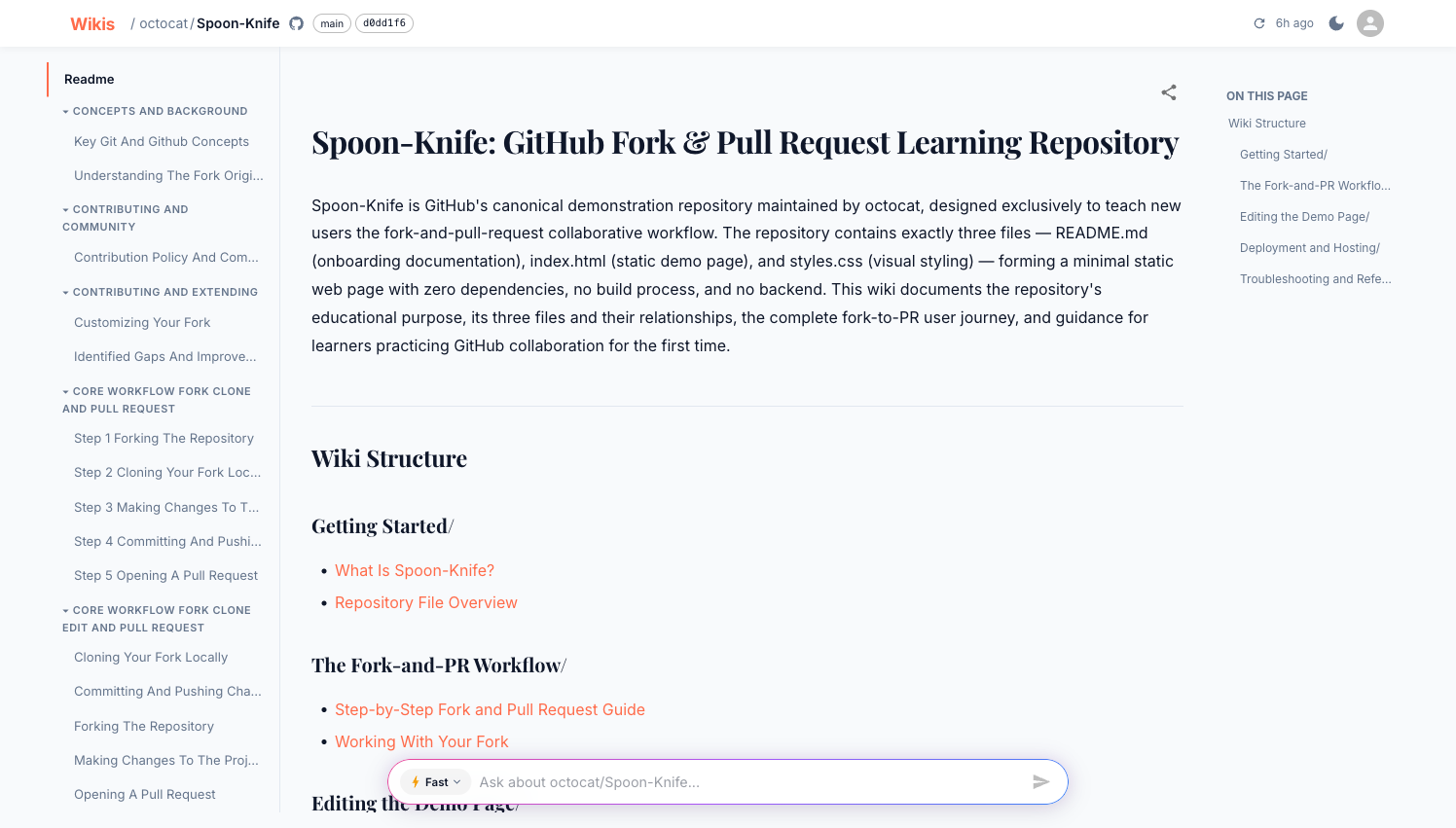
The wiki viewer has three panels:
| Panel | Location | Purpose |
|---|---|---|
| Sidebar | Left | Navigate between pages and sections |
| Content | Center | Rendered markdown with diagrams and code |
| On This Page | Right | Jump to headings within the current page |
The header
The header shows:
- Breadcrumb —
Wikis / owner / repowith links back to the dashboard - Branch badge — the branch this wiki was generated from
- Commit hash — links to the exact commit on GitHub/GitLab
- ↺ Refresh — re-generate the wiki (owner only)
- Indexed timestamp — when the wiki was last generated
Sidebar navigation
Pages are grouped into sections. Click a section header to navigate to the section's overview page (a table of contents listing every page in the section). Use the chevron icon to the right of the header to collapse or expand the section without navigating away. The currently active page is highlighted.
On mobile, the sidebar collapses into a drawer. Tap the menu icon in the top-left to open it.
The sidebar is temporarily hidden while a Q&A conversation thread is active, to give more space to the conversation. It reappears when you clear the conversation or navigate away.
Page content
Wiki pages are rendered GitHub-flavoured Markdown with:
Callout blocks
Wiki pages use Obsidian-style callout blocks for highlighted notes, warnings, tips, and examples:
[!tip] Performance tip Use the cached JWKS endpoint rather than fetching the public key on every request.
Six callout types are supported, each rendered with a colour-coded border and emoji label:
| Type | Colour | Use |
|---|---|---|
[!abstract] | Blue | Summaries, overviews |
[!info] | Cyan | Informational notes |
[!tip] | Green | Recommendations |
[!warning] | Orange | Cautions, edge cases |
[!example] | Purple | Code examples, walkthroughs |
[!danger] | Red | Breaking changes, destructive operations |
Properties panel
Each wiki page begins with a YAML frontmatter block. This renders as a collapsible Properties panel at the top of the page, showing metadata the AI extracted from the code:
- Title — the page title
- Tags — architectural layer, domain, or feature area
- Type —
module,architecture,api,guide, oroverview - Source files — repository paths of source files this page documents
- Symbols — key functions, classes, or types covered on the page
Click the panel header to collapse it and return to full reading width.
Syntax-highlighted code blocks
Every code block shows the language and a Copy button.
def generate_wiki(repo_url: str, branch: str = "main") -> str:
    """Kick off wiki generation and return the wiki_id."""
    ...
Mermaid diagrams
Architecture diagrams, sequence diagrams, and flowcharts are embedded as interactive SVGs:
graph LR
    A[Clone repo] --> B[Parse files]
    B --> C[Build index]
    C --> D[Generate pages]
    D --> E[Browsable wiki]
Internal links and wikilinks
Links between wiki pages navigate within the viewer — no full page reload. Pages link to each other using Obsidian wikilink syntax:
[[Page Title]]— links to the page whose title matches[[Page Title|Display Text]]— link with custom anchor text[[source/path/file.py|file.py]]— links to source file stub pages
Standard Markdown links ([text](url)) and anchor links (#section-heading) also work.
Tables
Capability tables and API references are rendered as styled HTML tables.
On This Page
The right-hand On This Page panel lists every heading on the current page. Click any entry to scroll directly to that section. The panel stays fixed as you scroll.
Sharing a page link
Click the share icon (↗) in the top-right corner of any page to copy a direct link. Shared-link recipients must be authenticated to view the wiki.
Keyboard navigation
| Key | Action |
|---|---|
Enter in Ask bar | Submit question |
Shift + Enter | New line in Ask bar |
| Clicking a sidebar item | Navigate to page |
| Clicking a TOC item | Scroll to heading |
Obsidian compatibility
Every wiki is structured as an Obsidian-compatible vault. See Obsidian Integration for a full guide on opening wikis in Obsidian, using graph view, and working with wikilinks and source file stubs.